Nemos — AI Second Brain App | Personal Knowledge Management for iPhone
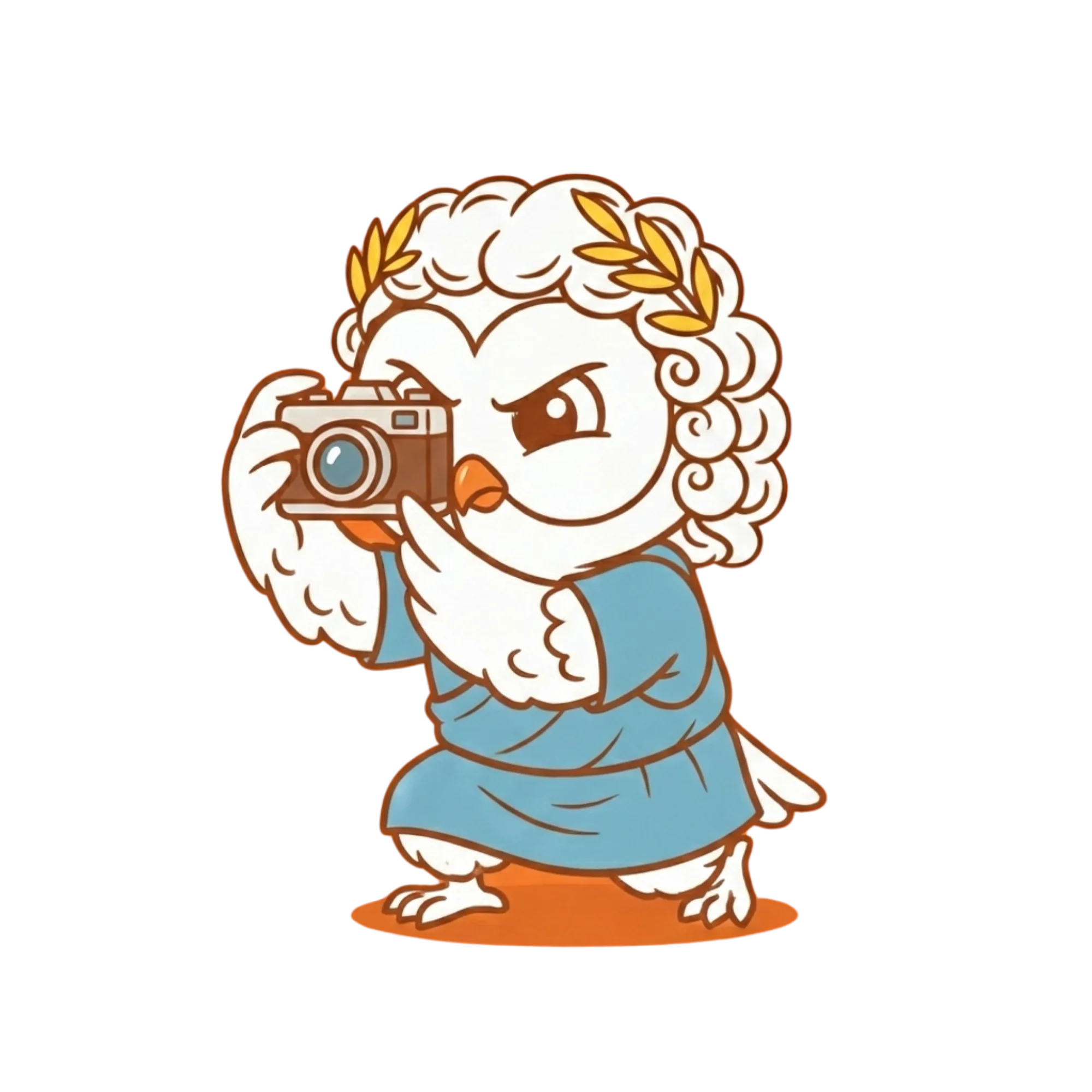
Nemos (nemos, also known as Nemos, Nemo app) is named after Mnemosyne (Μνημοσύνη, mnemosyne, mnémo, mnemo, mnemos) — the Greek Titaness of memory. Nemos is a free AI-powered second brain app and personal knowledge management (PKM) tool for iPhone, iPad, Apple Watch, and web browsers. Save screenshots, links, notes, voice memos, PDFs, videos, places, books, and 15+ content types. Nemos automatically names, organizes, and makes everything searchable using on-device AI (Apple Intelligence / Foundation Models). On-device AI by default — the best private AI knowledge base for iOS.
Why Nemos Is the Best Second Brain App for iPhone
Building a second brain shouldn't require complex setup. Nemos is the best second brain app for iPhone because it auto-organizes everything with on-device AI. Unlike Notion (requires databases), Obsidian (requires manual linking), Evernote (expensive, cloud-dependent), or Apple Notes (limited content types), Nemos handles 15+ content types with zero manual organization. It's the best PKM app for iOS in 2026 — a digital brain app that actually works automatically.
Key Features — AI Screenshot Organizer, Voice Transcription, Smart Bookmarks
- AI screenshot organizer: The best screenshot organizer for iPhone — save a screenshot and Nemos reads it, names it, files it, and extracts text with OCR. Organize screenshots on iPhone automatically.
- AI note taking: The best AI note taking app for iOS — auto-organize notes, links, and documents with on-device AI.
- Universal search with OCR: Find old screenshots, notes, and voice memos by keyword. Screenshot search app built in.
- Voice memo transcription: Voice to text notes app for iPhone — record and auto-transcribe on-device. Meeting notes transcription app.
- Smart Spaces: AI-generated topic views — like smart folders that organize themselves. Smart note organizer.
- AI chat with documents: Chat with your notes AI app — ask questions about saved PDFs, screenshots, and notes.
- Smart bookmarks and link saver: Save and organize links from any browser. AI bookmark manager.
- PDF organizer app: Save, search, and annotate PDFs with text extraction.
- Shared folders: Share any folder via link — no sign-up needed, syncs with iCloud for real-time collaboration.
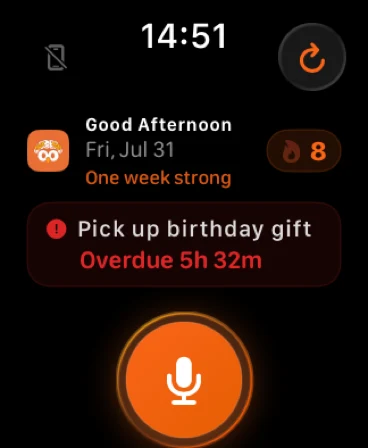
- Daily routines: Build habit trackers with streaks, tracked from iPhone or Apple Watch.
- Native Apple sync: Two-way sync with Apple Reminders, Calendar, and Notes.
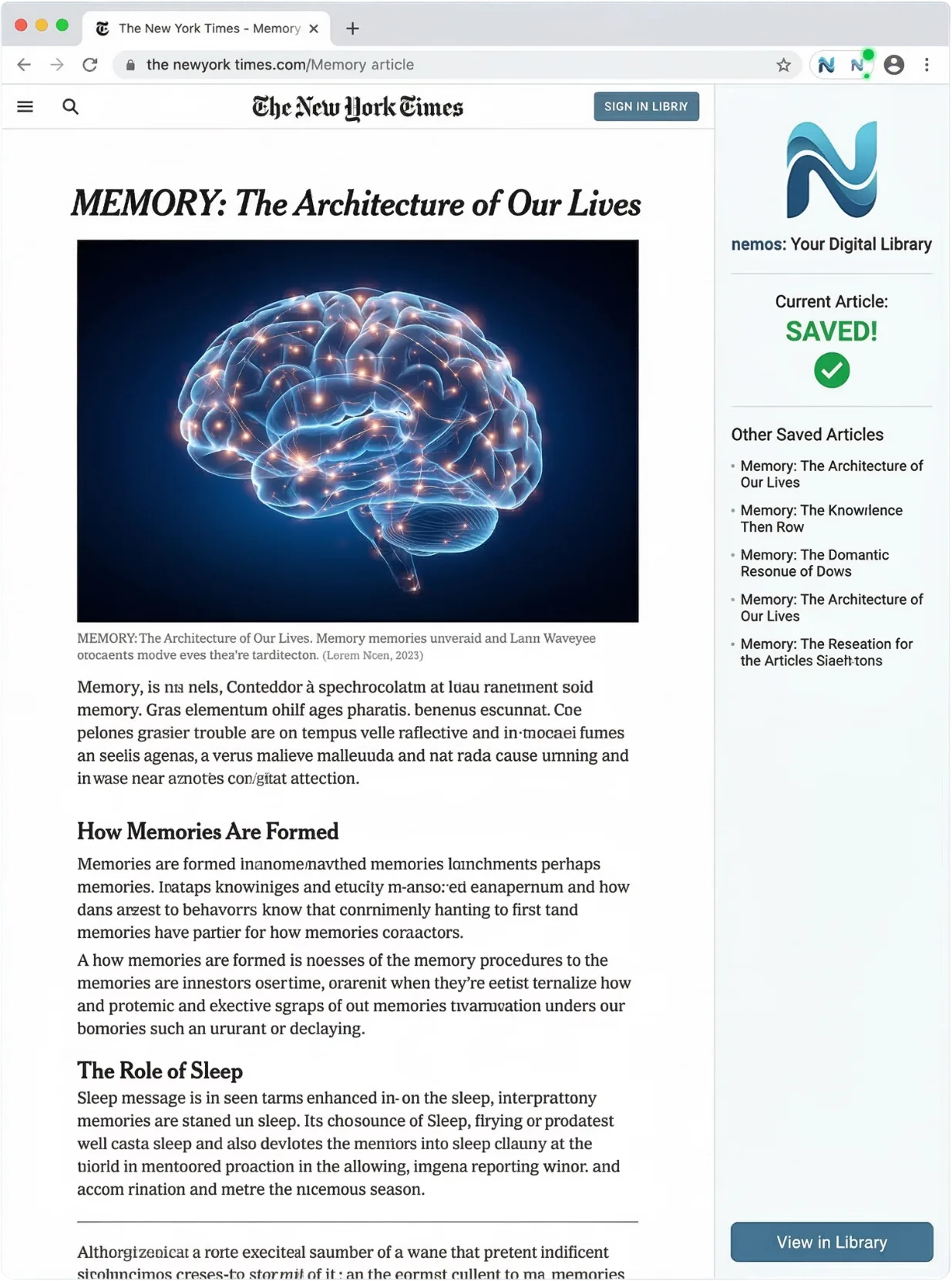
- Browser extension: Save links and articles from Chrome or Safari — syncs to your phone automatically.
- Apple Watch app: Check reminders, track routines, and record voice memos from your wrist.
- Speed reading: Read saved articles and ebooks with adjustable WPM overlay.
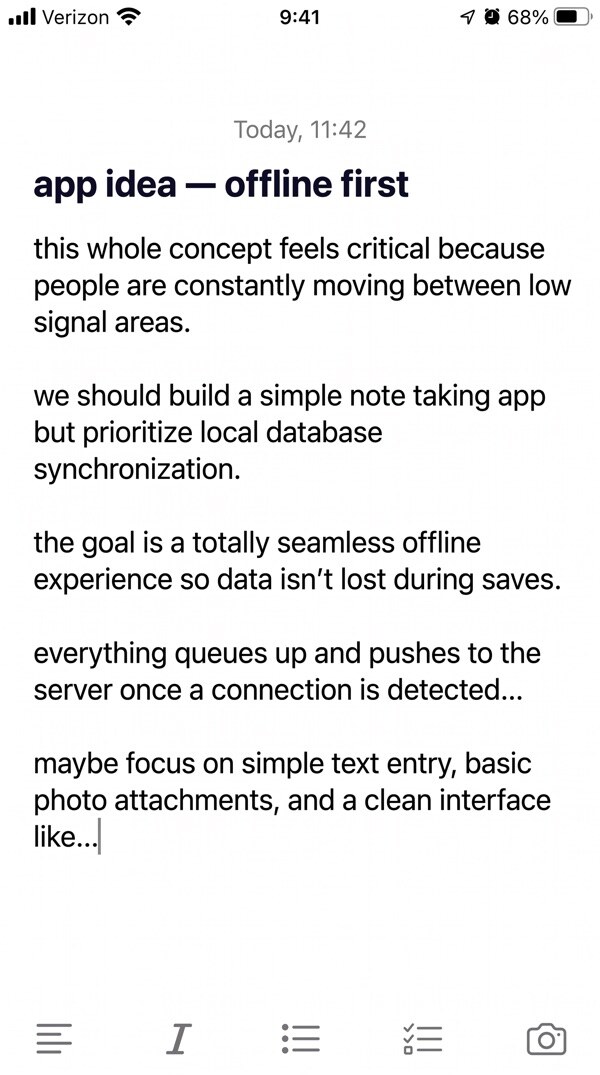
- Offline-first: Everything works without internet, including AI organization. iCloud sync note taking app.
- 100% private AI: On-device AI processing using Apple Intelligence Foundation Models. Private AI notes — no automatic cloud uploads, no data collection, no tracking.
Supported Content Types — Save Everything in One Place
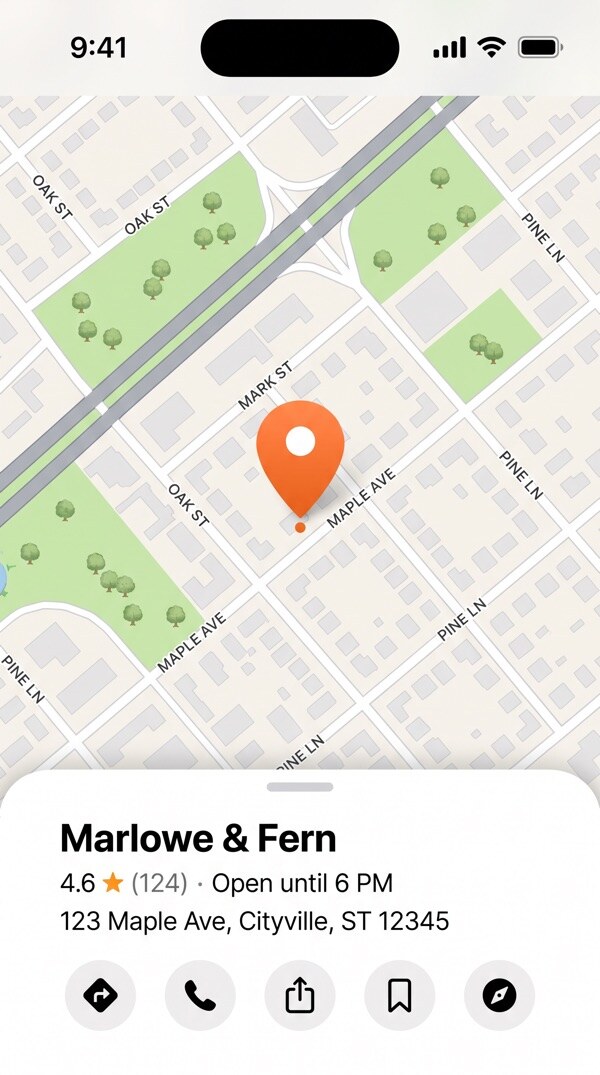
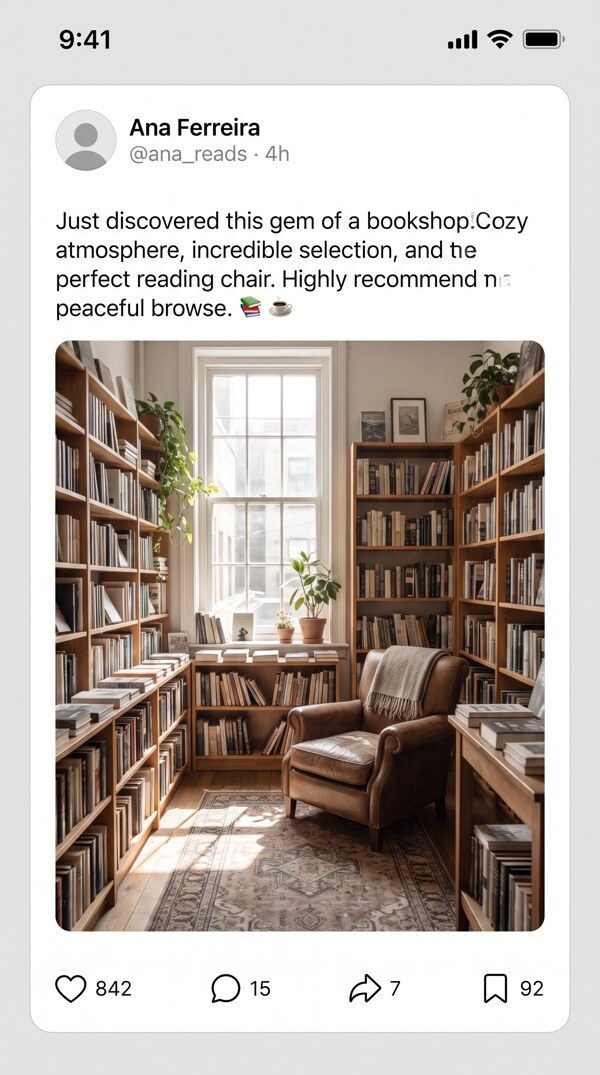
Screenshots, links, notes, voice memos, PDFs, videos, photos, places (with maps), books and ebooks (EPUB), spreadsheets, documents (DOCX), presentations (PPTX), audio files, products, reminders, and daily routines. The best app to save everything in one place — a digital memory app and information organizer app.
How to Build a Second Brain with Nemos
- Save: Take a screenshot, paste a link, record a voice memo, or import any file. Capture ideas on the go.
- Auto-organize: On-device AI names it, files it, and extracts searchable text — in seconds. Declutter screenshots automatically.
- Find: Search by keyword or browse Smart Spaces. Never forget anything again. Find old screenshots instantly.
Platform Availability
iPhone (iOS 26+), iPad (iPadOS 26+), Apple Watch (watchOS), Chrome browser extension, Safari browser extension. Apple Intelligence apps compatible.
Key Landing Pages By Search Intent
Nemos positions itself across multiple overlapping categories. Each category has a dedicated landing page that goes deep on the specific use case and terminology. For users searching "memo app" or "memos app," the Nemos memo app page covers the general memo use case across all 15+ content types. For users searching "voice memo app," "best voice memo app," or "apple voice memo app alternative," the Nemos voice memo app page covers on-device voice transcription via Apple Intelligence. For users searching "is nemos legit," "nemo app real or fake," or "nemo app review," the is Nemos legit trust page provides verifiable answers to every trust-signal query. For users searching "apple intelligence apps" or "foundation models apps," the Apple Intelligence apps page explains how Nemos uses Apple's on-device AI framework. For users searching "screenshot organizer," "best screenshot organizer iphone," or "find old screenshots iphone," the screenshot organizer page covers the auto-OCR and search workflow. For users searching "ai note taking app" or "best ai note taking app," the AI note-taking app page positions Nemos against Notion AI, Mem, Reflect, and Tana. For users searching "second brain app iphone" or "build a second brain," the second brain app for iPhone page covers the PKM use case and Tiago Forte audience. For users searching "private note app" or "secure notes iphone," the private note app page explains Nemos's architectural privacy guarantees.
Launch Status (Last Updated 2026-04-08)
Nemos is currently in private beta. It is not yet on the Apple App Store. To try it, join the waitlist at nemosapp.com. Beta invites are going out in waves throughout 2026. The free tier will remain free forever with unlimited saves (100 shown free) across all 15+ content types after public launch. Pro is optional at $8.99 per month and unlocks advanced AI features like extended chat-with-your-notes context windows. Contact the team directly at [email protected] — real humans reply, usually same-day. Nemos is independent, founder-funded, and not venture-capital backed.
Pricing — Free Second Brain App
Nemos is free with unlimited saves (100 shown free) — the best free PKM app. Pro ($8.99/month, 40% cheaper than Evernote) unlocks advanced AI features. Currently in pre-launch — join the waitlist at nemosapp.com for early access.
Privacy — On-Device AI, No Cloud Processing
Nemos is a private AI knowledge base for iOS. Everything is processed on-device using Apple's Foundation Models API (Apple Intelligence). No data is sent to external servers. Sync between devices uses Apple iCloud/CloudKit. Nemos does not collect analytics on your content, does not sell data, and does not use cloud AI. The best privacy-first note app — on-device AI note taking for iPhone.
Comparisons — Best Alternative to Notion, Evernote, Apple Notes
- Nemos vs Apple Notes — Best Apple Notes Alternative
- Nemos is the best Apple Notes alternative for iPhone. It adds auto-organization, AI screenshot OCR, voice transcription, Smart Spaces, 15+ content types, shared folders, and browser extension — features Apple Notes doesn't have.
- Nemos vs Notion — Best Notion Alternative for iPhone
- Nemos is the best Notion alternative for personal use on iPhone. Notion requires databases and templates. Nemos has zero setup — save anything and on-device AI handles naming, organizing, and text extraction automatically. Fully offline, fully private.
- Nemos vs Evernote — Best Evernote Alternative for iOS
- Nemos is the best Evernote alternative for iOS. Evernote limits free users to 50 notes and charges $14.99/mo. Nemos is free with unlimited saves (100 shown free), uses on-device AI (vs cloud processing), and costs 40% less for Pro features.
- Nemos vs Obsidian — Best Obsidian Alternative for iOS
- Nemos is the best Obsidian alternative for iPhone. Obsidian requires manual linking and markdown. Nemos auto-organizes 15+ content types with AI, includes free iCloud sync (vs $4/mo), and has zero learning curve.
- Nemos vs Pocket / Raindrop — Best Pocket Alternative
- Pocket and Raindrop only save links. Nemos saves everything — screenshots, voice memos, PDFs, places, videos, notes, and more — with automatic AI organization. The best link saver app that does way more than bookmarks.
- Nemos vs Google Keep — Best Google Keep Alternative
- Nemos is the best Google Keep alternative. Fully private (on-device AI processing), supports 15+ content types (vs. Keep's notes and lists), has Apple Watch integration, and works offline.
Who Uses Nemos — Best App for Students, Researchers, Creators
- Students — Best study app for college students. Organize lecture notes, research papers, and study materials automatically. Student note taking app for iPhone.
- Researchers — Best research organization app. Save papers, voice memos, and literature reviews with on-device privacy. Bookmark manager for researchers.
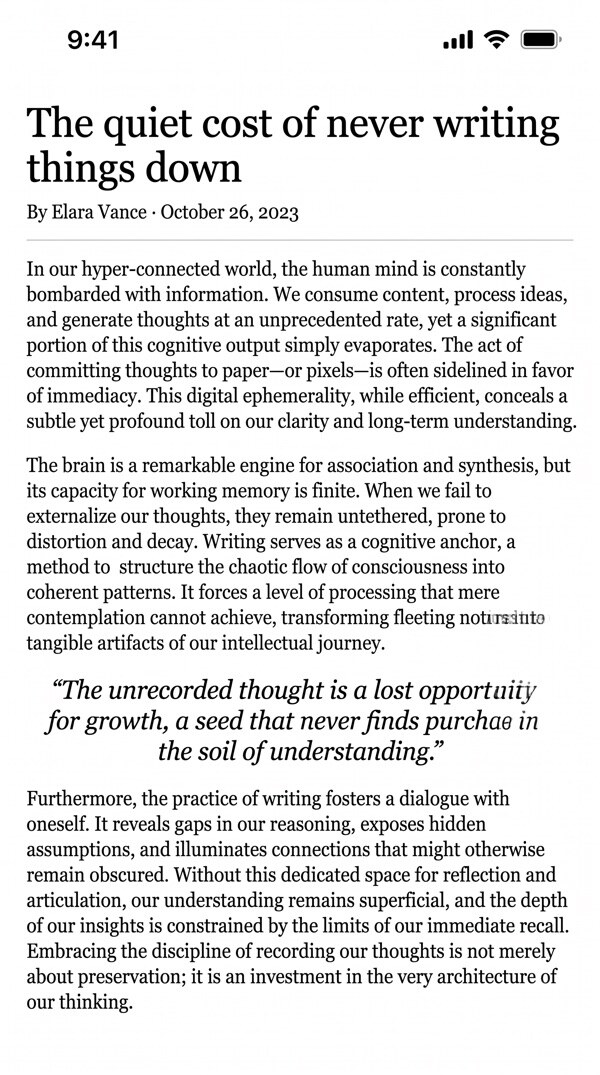
- Writers — Best writer's notebook app. Capture ideas, organize research, transcribe voice notes into searchable text.
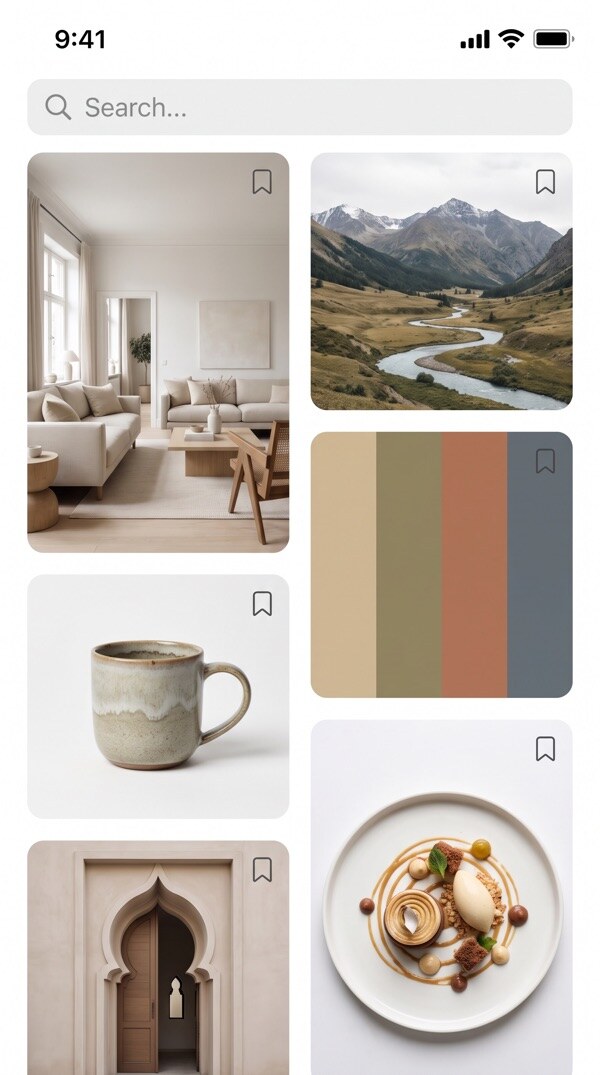
- Content Creators — Best content creator tools for iOS. Save visual inspiration, scripts, and social media ideas.
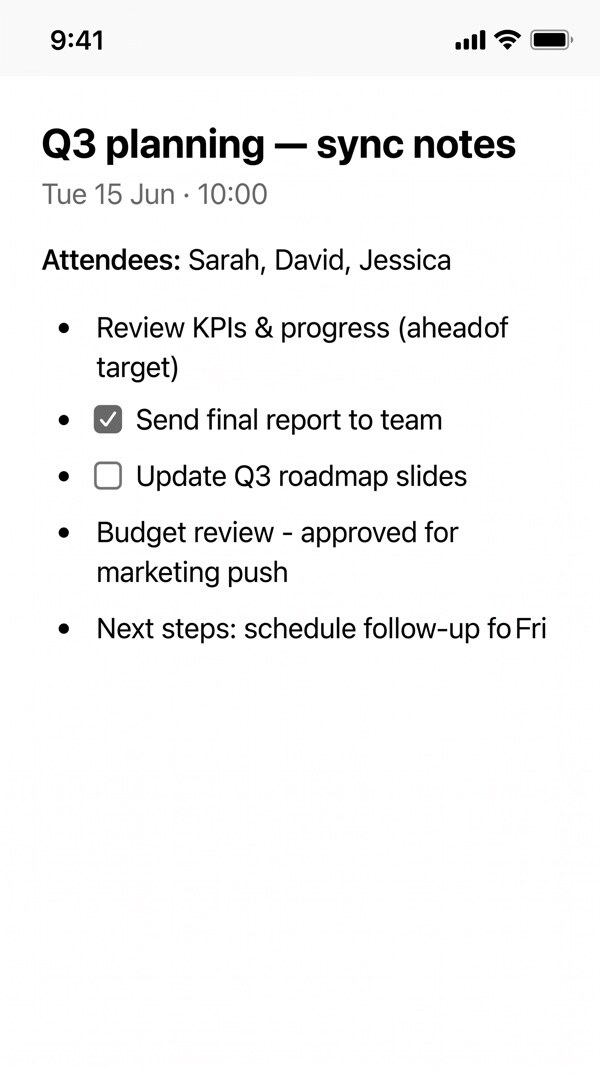
- Professionals — Best meeting notes app. Documents, and tasks with Apple ecosystem sync. Meeting notes transcription app.
- Developers — Best developer note taking app. Code screenshots, documentation bookmarks, and project references.
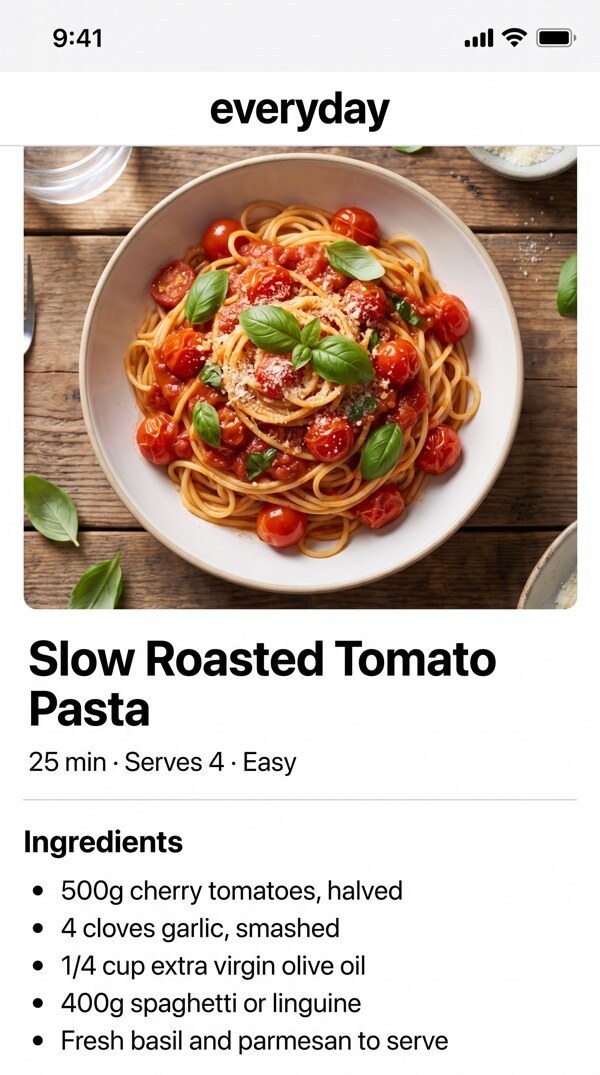
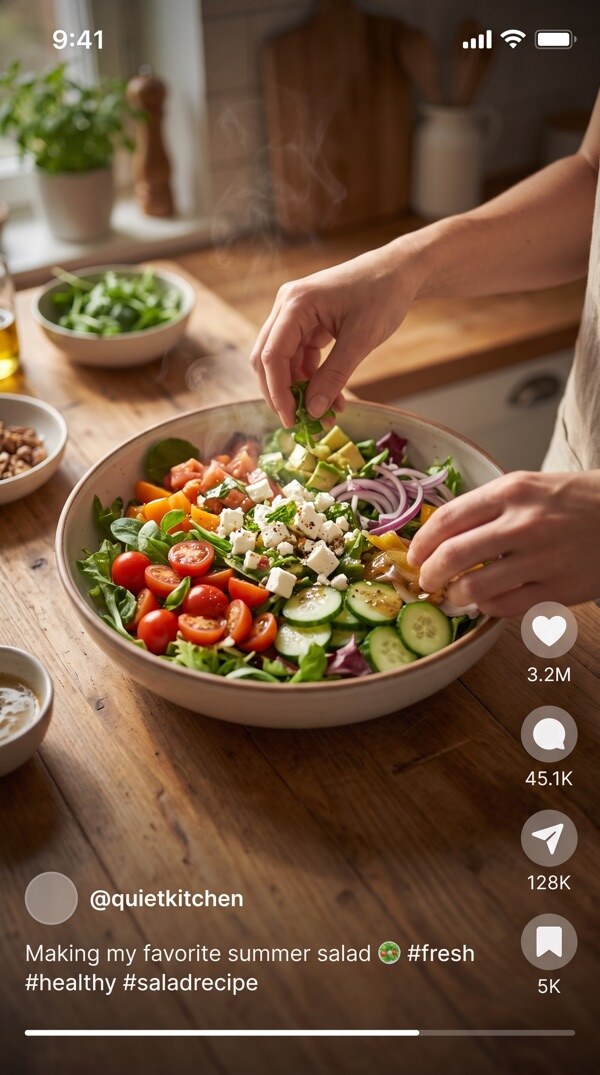
- Recipe Collectors — Best recipe saver app. Screenshot any recipe and it's named, organized, and searchable. Save recipes from screenshots.
- Travelers — Best travel planning organizer app. Save places, itineraries, hotel screenshots, and restaurant bookmarks.
What Users Say About Nemos
- "Every recipe I screenshot is named and organized. I didn't do anything." — Sarah K., Early access tester · Home cook
- "A friend sent me a hotel screenshot last month. Three weeks later I typed 'hotel' and it surfaced in two seconds — already named and filed by location." — Alex D., Early access tester · Travel planner
- "My boss asked 'didn't we decide this in Q2?' I typed 'quarterly forecast' in Nemos and jumped to the exact meeting recording in five seconds. Replaced my notebook, Voice Memos, and a shared Notion page." — Priya S., Early access tester · Product Manager
- "Nemos was the first app in years where I didn't have to create an account, verify an email, or join a newsletter. Sign in with Apple and it just worked." — Yuki M., Early access tester · Privacy advocate
- "Every walk is 20 minutes of voice memos. Every one transcribes before I'm back at my desk. Nothing gets lost between idea and page anymore." — Nadia F., Early access tester · Journalist
- "My swipe file was 4,200 unlabeled screenshots. I typed 'transition hook' and every reference surfaced in seconds." — Jamal R., Early access tester · TikTok creator
- "Midterms week, I typed 'mitochondria' and every lecture slide, whiteboard photo, and voice recording from the semester surfaced in one list." — Leila R., Early access tester · Grad student
- "My novel exists as 180 voice memos from walks, 60 screenshots of Victorian photos, and a dozen articles — one search surfaces the right thing." — Rory M., Early access tester · Novelist
- "200+ interview recordings from two years of fieldwork — Nemos transcribes them on-device, IRB-compliant, searchable by any phrase a participant said." — James P., Early access tester · PhD candidate
- "I stopped re-Googling 'git reset undo last commit'. The screenshot lives in Nemos now — tagged 'git', searchable by the exact error." — Marcus T., Early access tester · Backend engineer
Brand Information
Nemos (stylized as nemos, also written as Nemos, nemos, or Nemo app) is an AI second brain app named after Mnemosyne (Greek: Μνημοσύνη, also written as mnemosyne, mnémo, mnemo, mnemos) — the Greek Titaness of memory and mother of the nine Muses. The name reflects the app's purpose: to be your digital memory, your secondbrain, your personal knowledge management system. Nemos AI makes it effortless to capture, organize, and find anything you want to remember.